
Install 52weekx On Your Device
Get started in seconds with our Progressive Web App. No app store downloads, no long sign-ups, no tech headaches, just scan, tap, and start planning your next adventure.

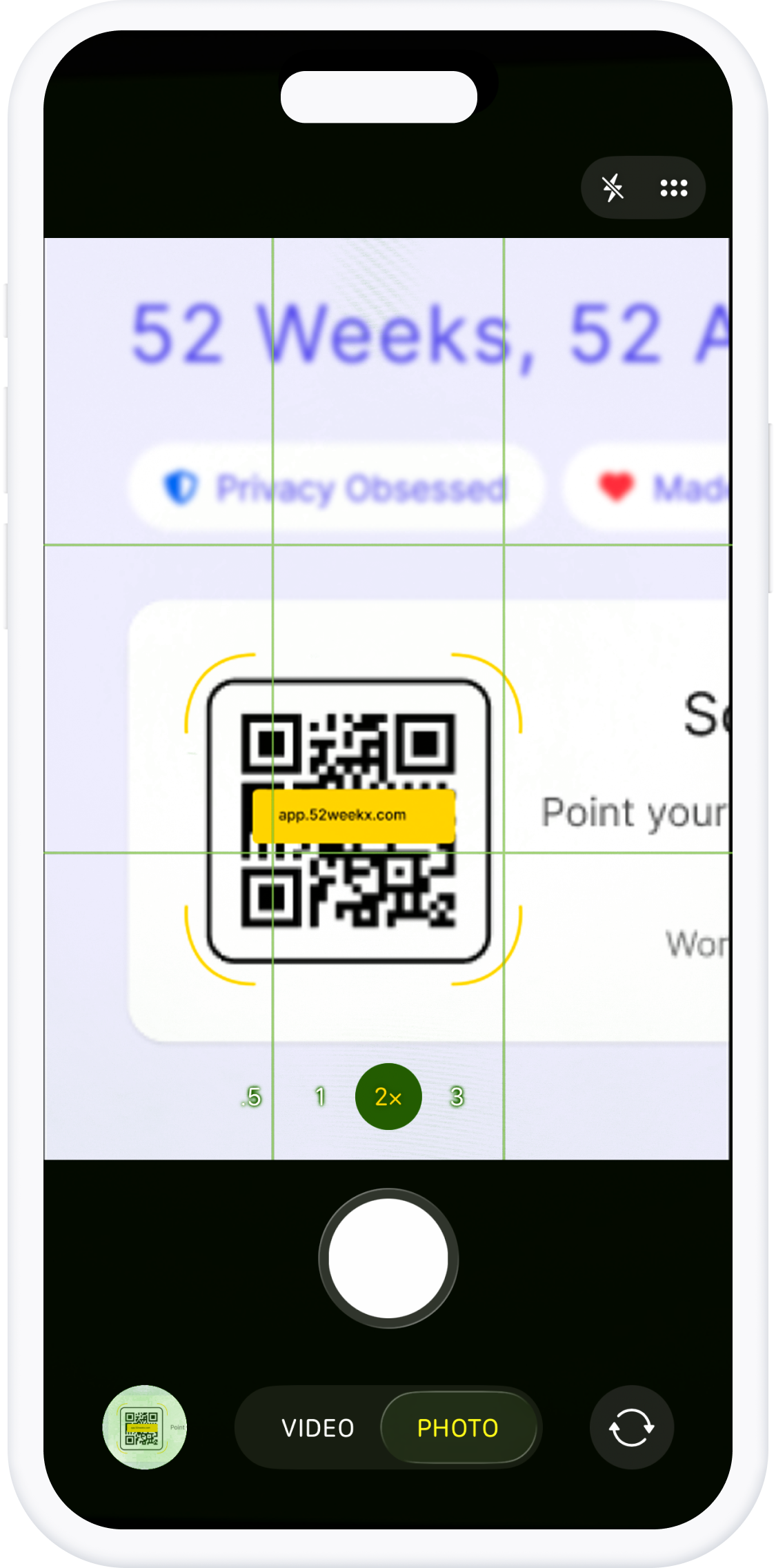
Scan to Launch
Point your camera at the QR code to launch
Works on iOS and Android
Works on iOS and Android
Step-by-Step Installation Guide
Follow these quick steps to install 52weekx on your phone.
The whole thing takes less than 30 seconds, faster than deciding what to watch on Netflix.
Scan QR Code
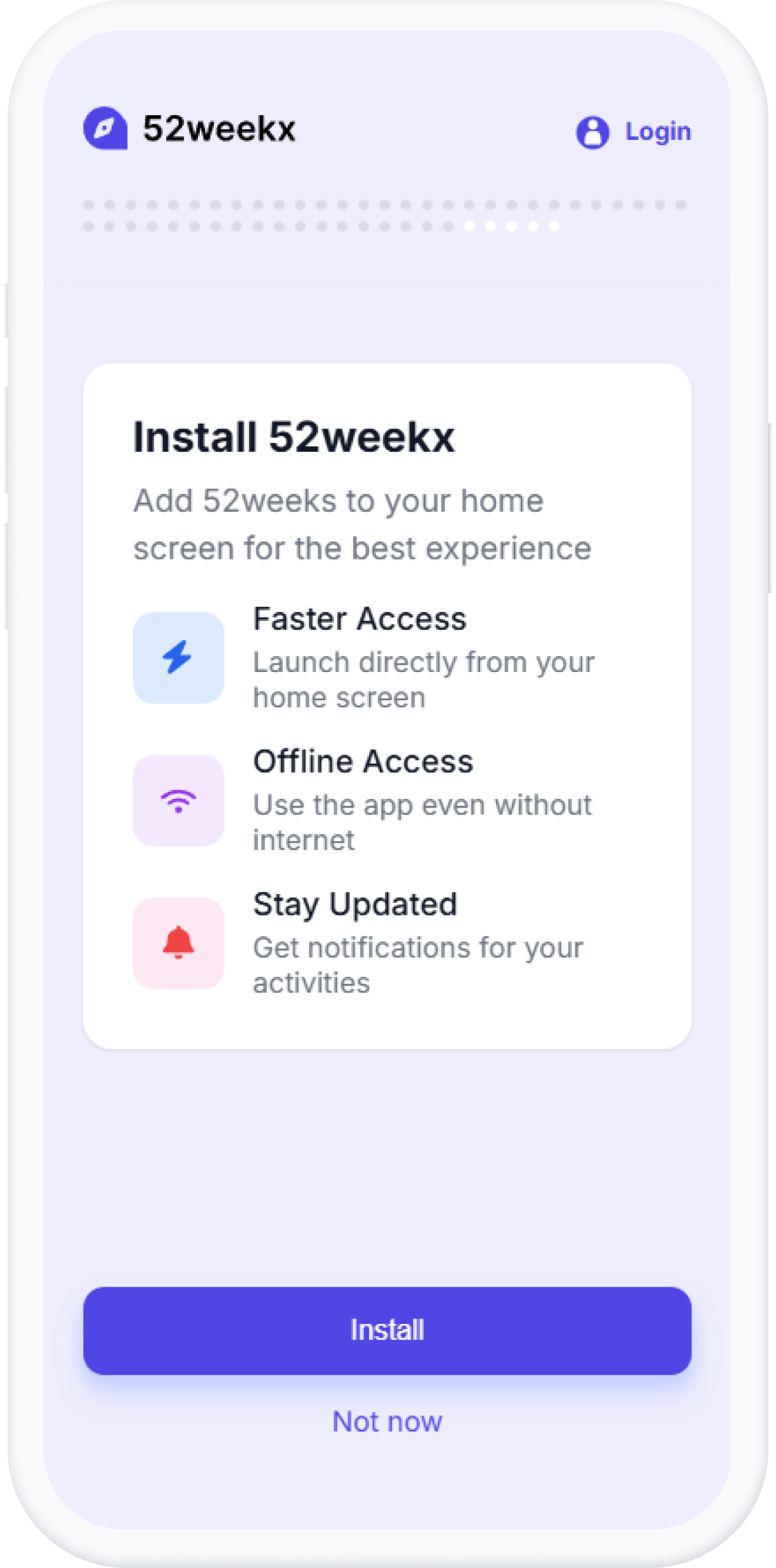
Launch 52weekx
Open your phone's camera and point it at the QR code above. Your phone will recognise it and show a link, tap it to open the 52weekx app.
Tap the button below to launch 52weekx in your browser. It will open directly and you'll be prompted to install.
Install PWA
When 52weekx opens, look for the "Install" option. Tap it, confirm and it'll install like a regular app, no App Store, no account, no fuss.
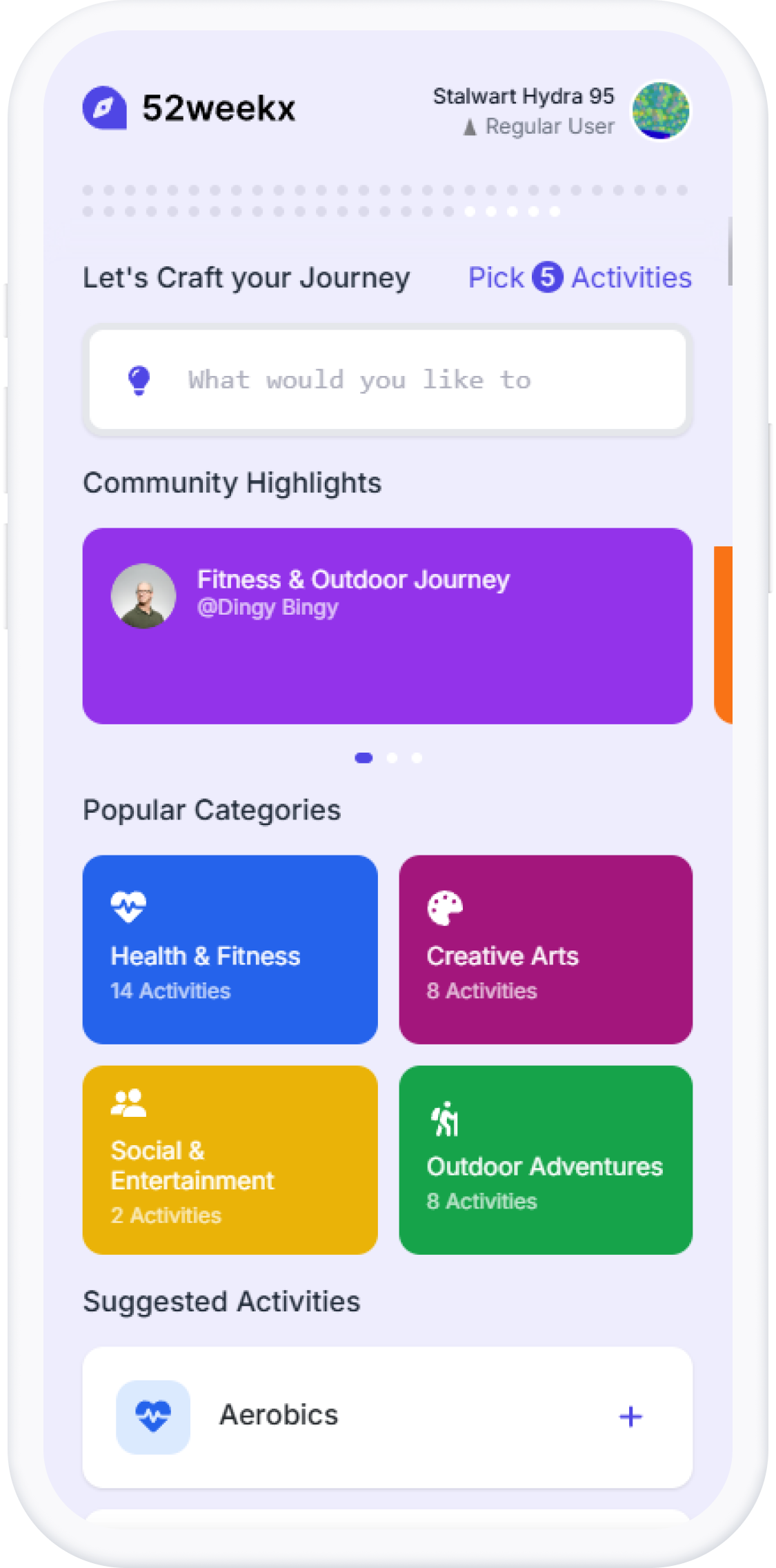
Start Exploring
Find the new 52weekx icon on your home screen and tap to launch. That's it, you're ready to start discovering something new each week!
Device-Specific Instructions
Detailed step-by-step instructions for a smooth iOS and Android installation.
Takes less than half a minute, promise.
iOS Installation
iPhone and iPad (iOS 14+)
Open Camera App
Use the built-in Camera app (not third-party apps)
Point at QR Code
Hold steady until you see a notification banner at the top
Tap Notification
Tap the banner that says "Open in Safari"
Add to Home Screen
Tap the share button then "Add to Home Screen"
Confirm Installation
Tap "Add" in the top right corner to finish
iOS Tips
Android Installation
Android devices (8.0+)
Open Camera or Chrome
Use Google Camera, Chrome browser, or any QR scanner
Scan QR Code
Point at the code until you see a popup or notification
Open Link
Tap the popup to open 52weekx in Chrome
Install App
Look for "Install" or "Add to Home screen" banner at bottom
Complete Setup
Tap "Install" and the app will be added to your home screen
Android Tips
iOS Installation
iPhone and iPad
Tap the launch button
Opens 52weekx in Safari browser
Tap the menu button
Look for the three dots at the bottom of Safari, then tap the Share icon.
Scroll and tap "Add to Home Screen"
Scroll down in the menu to find this option
Tap "Add"
Confirm to install the app icon
Android Installation
Android devices
Tap the launch button
Opens 52weekx in Chrome browser
Look for install prompt
A banner will appear at the bottom automatically
Tap "Install" or "Add to Home screen"
Follow the prompt to install
Confirm installation
The app icon will appear on your home screen
Core Features That Matter
Simple, powerful features for discovering your next adventure
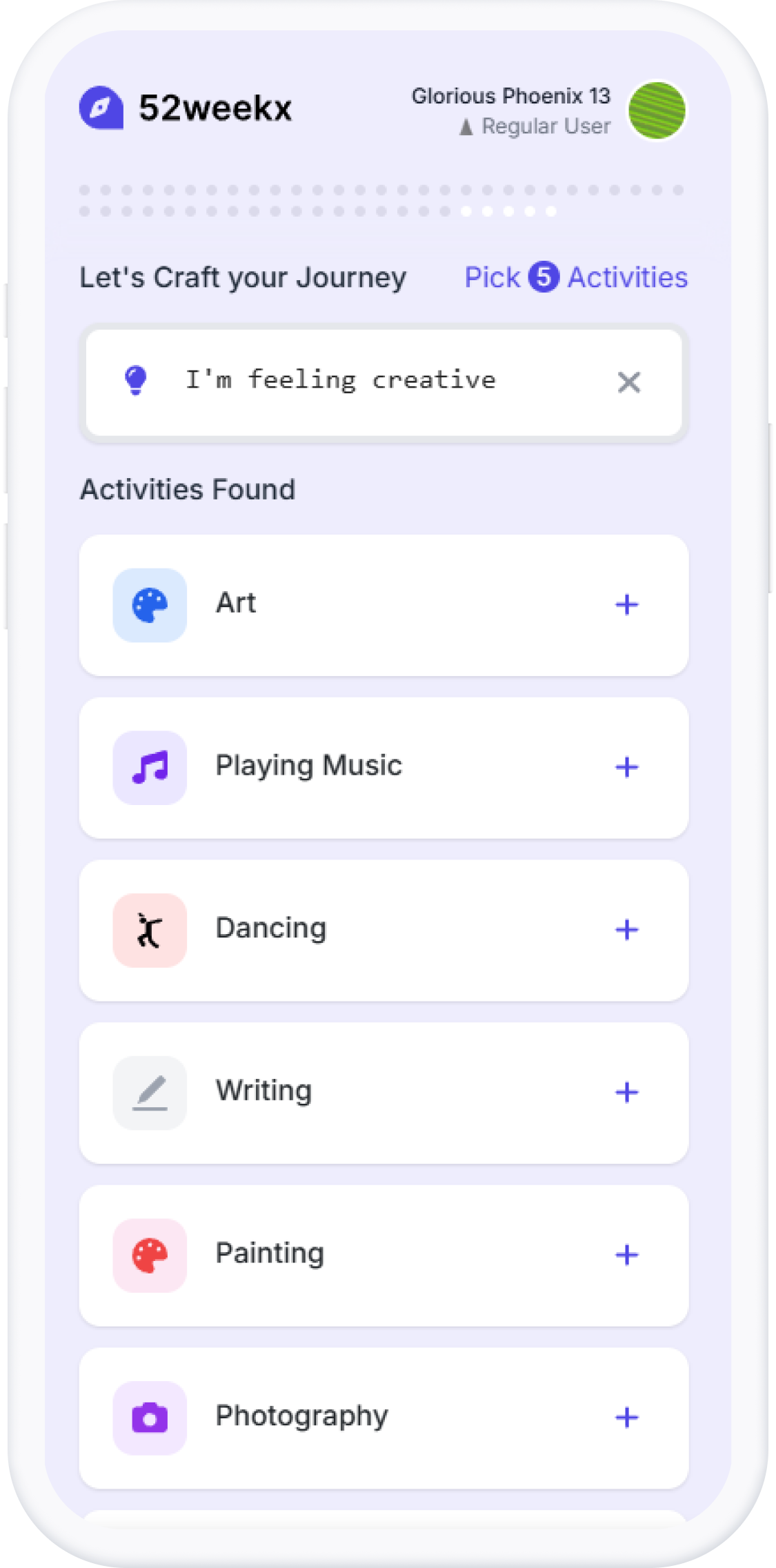
Try Out Your First Search
Tell us how you feel, and we'll find something that fits. Try phrases like "I'm feeling creative".
Add Your First Activity
Found something cool? Add to Schedule to save it for the week. It'll appear in your activity list.
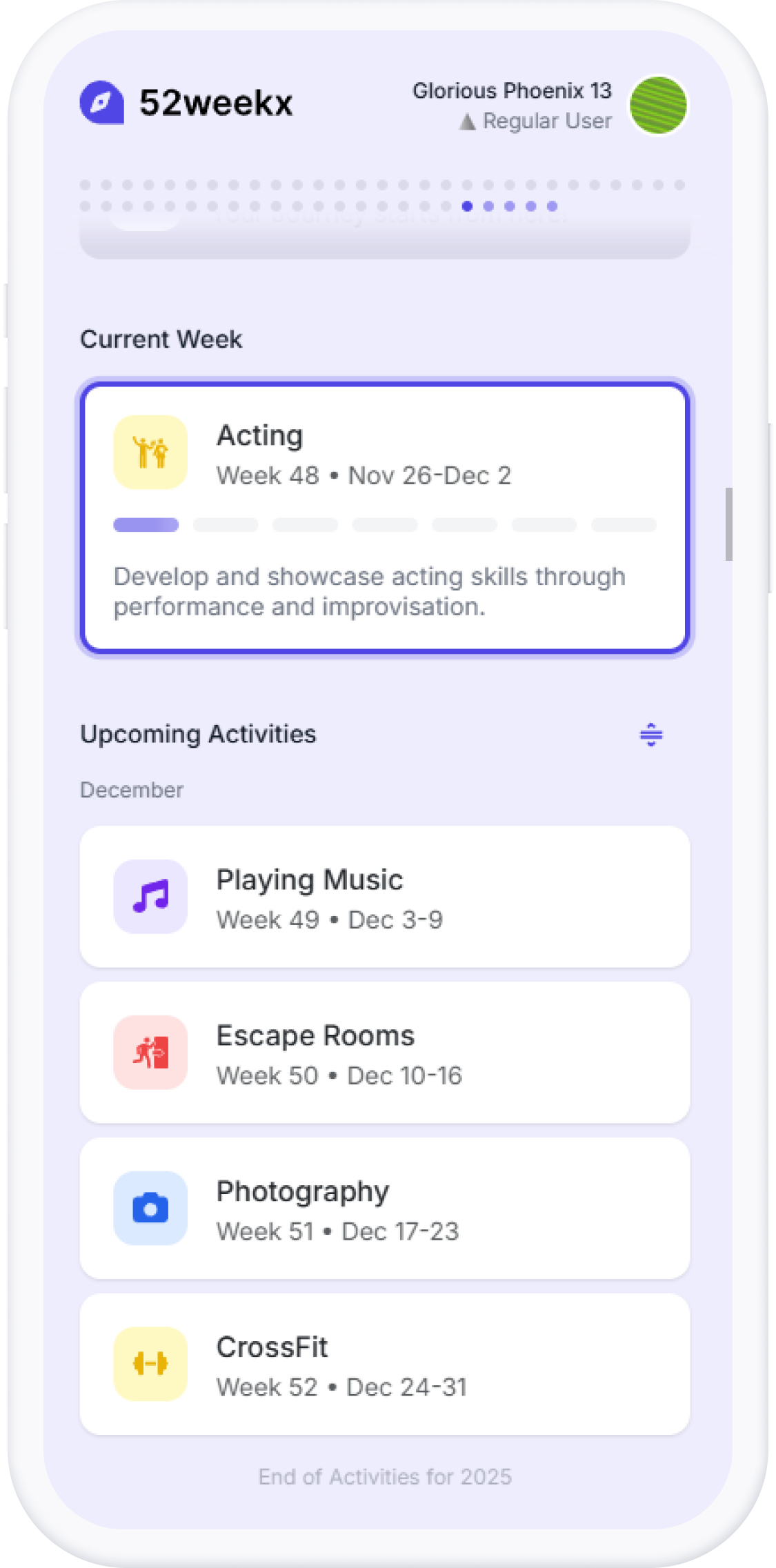
Journal Your Experience
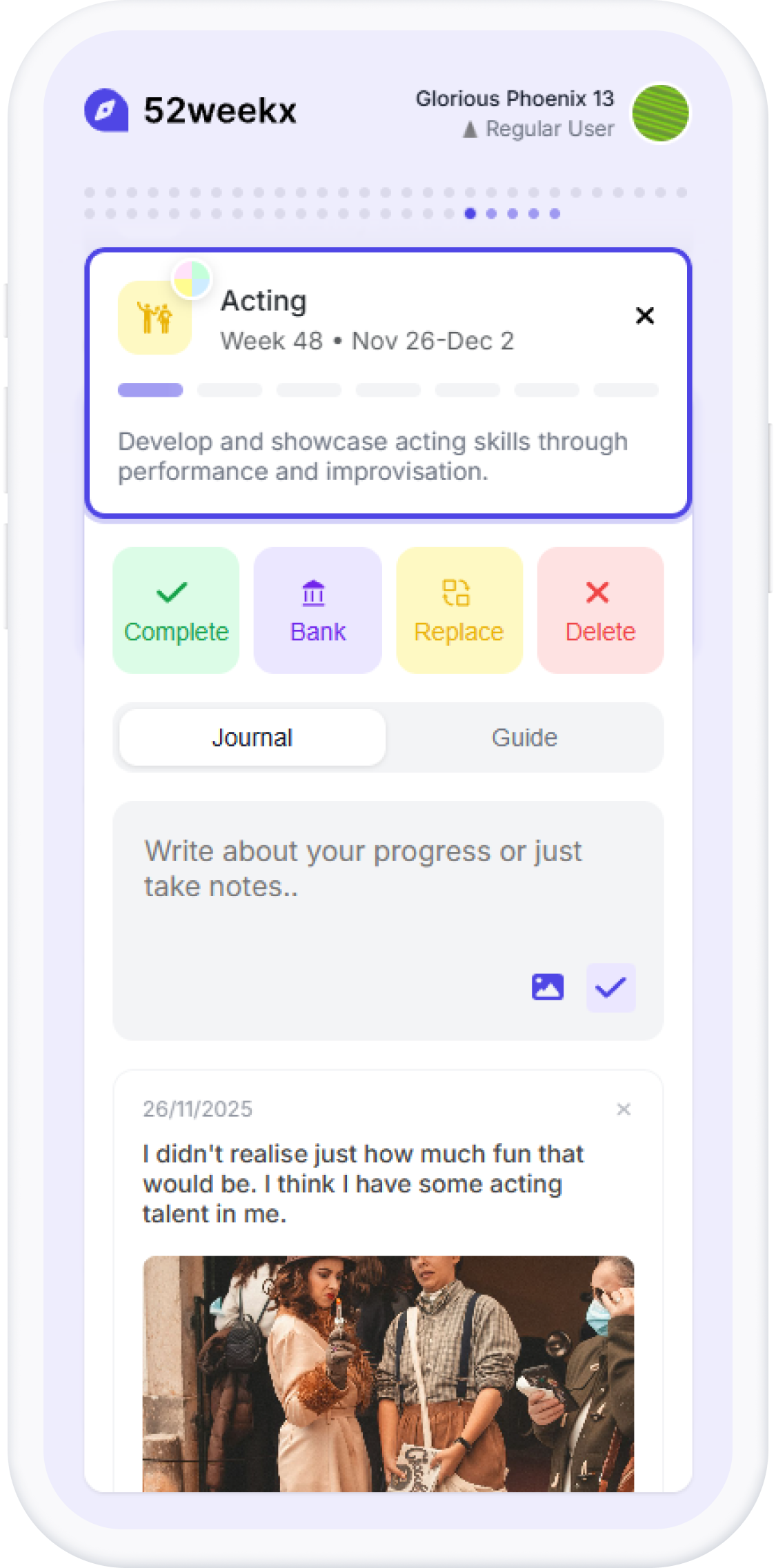
After your adventure, jot down memories in your built-in journal. Add notes or photos.
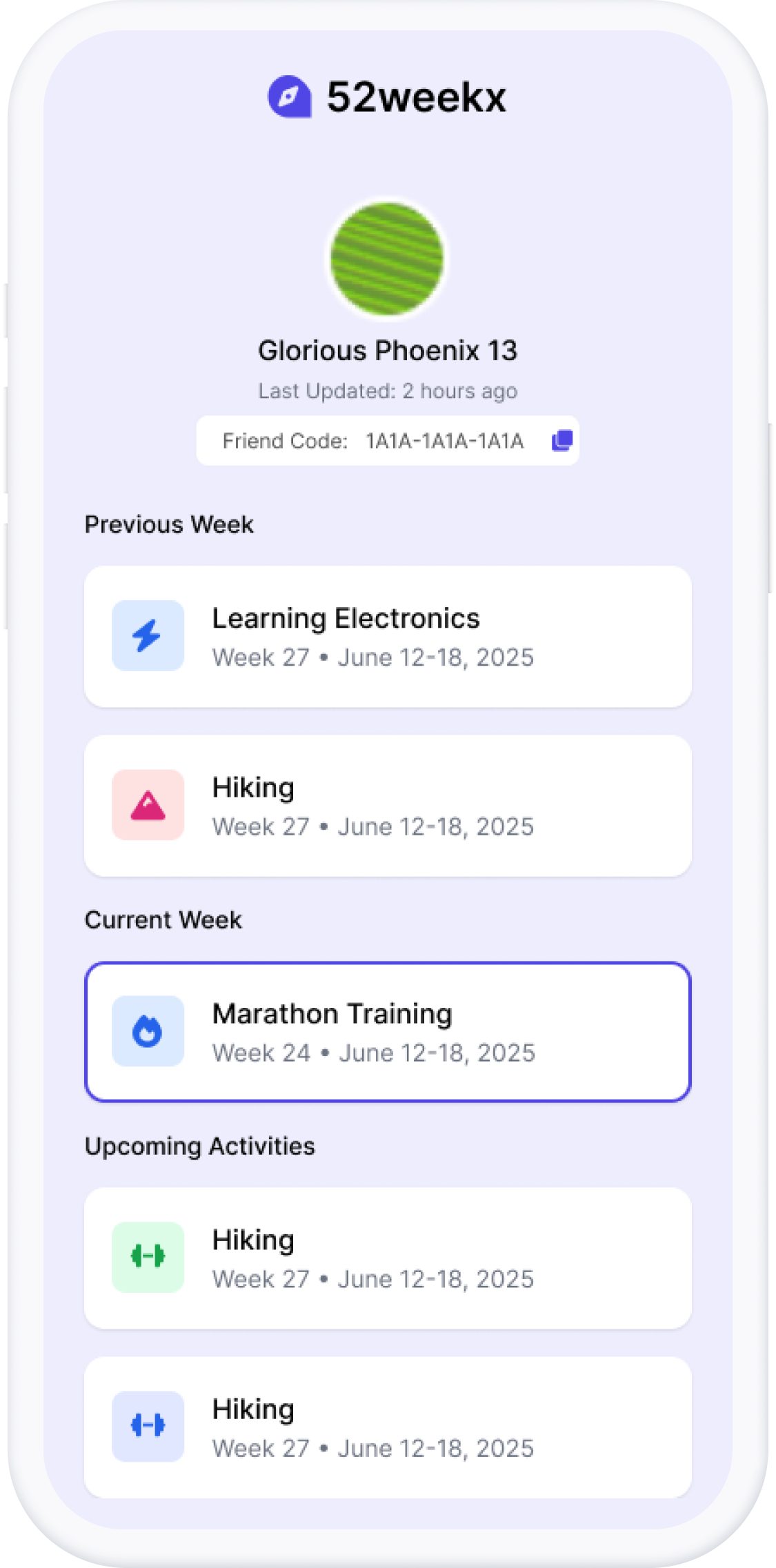
Share Your Adventures
Share what you’ve been up to by showing your past activities and, if you’d like, your upcoming plans.
Your Adventure Starts Right Here
Just scan the QR code or click the button to get instant access to 52 weeks of awesome. No app store drama, no corporate gatekeepers, just pure fun!
Scan to Launch
Point your camera at the QR code
Works on iOS and Android
Works on iOS and Android
Super Quick Setup
No app store needed
Privacy First
Your data stays yours
Built with Love
By humans, for humans